Horizon Hub
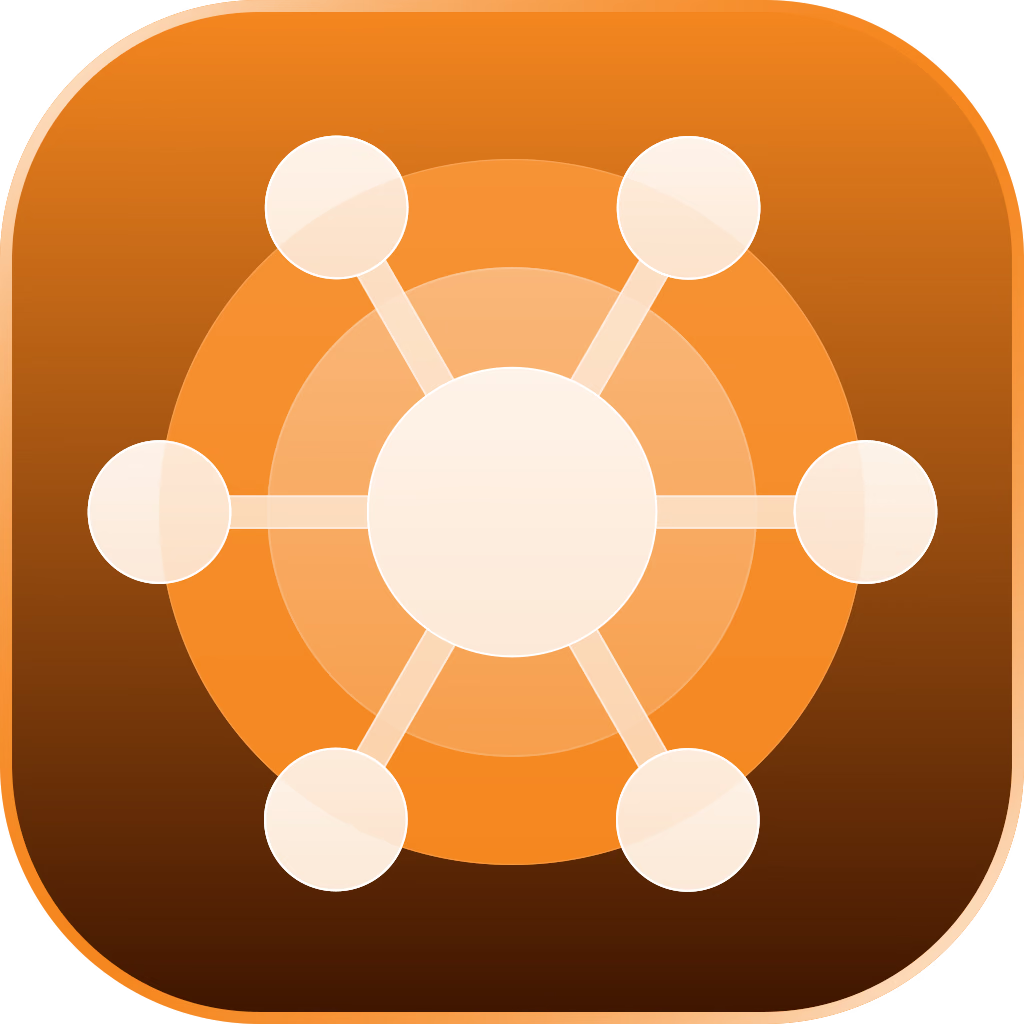

Horizon Hub is a desktop application for downloading PTZOptics software. Use it to install, launch, update, and uninstall PTZOptics applications from one place.
Download Horizon Hub
Download Horizon Hub for Windows, macOS, or Linux from the Downloads page. Choose the download for your operating system, then follow the prompts to install.
You can choose a custom install location during installation. This is the only time you can change Horizon Hub's install location.
Apps in Horizon Hub
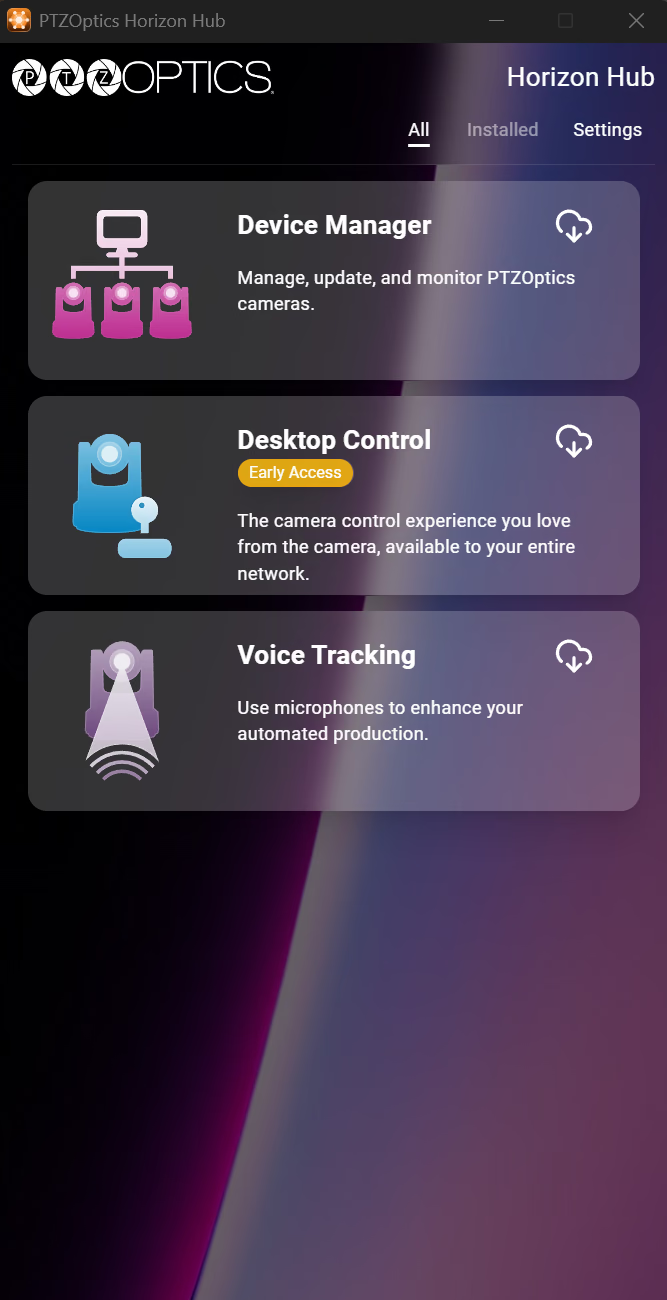
Horizon Hub lists the PTZOptics applications you can download.
| App | What It Does |
|---|---|
| Device Manager | Manage, update, and monitor PTZOptics cameras. Device Manager can also locate cameras on your network. |
| Horizon Desktop Control (Early Access) | Modern Control for the Cameras You Know. Bring the next-generation Horizon control experience to your existing PTZOptics cameras. Horizon Desktop Control delivers a modern, intuitive interface for compatible Move SE and legacy G2 cameras, giving you enhanced control without the need to upgrade your hardware. |
| Voice Tracking | Use microphones to enhance your automated production. |
Voice Tracking is available as two versions. The experience, settings, and configuration are identical in both.
- Horizon Web UI: Voice Tracking is built into the Horizon Web UI. This version works only with the Move 4K, Link 4K.
- Horizon Hub: The Horizon Hub Voice Tracking app is a desktop application version of the Horizon Web UI's Voice Tracking. It lets PTZOptics cameras without built-in Voice Tracking use it, including the Move SE and older-generation cameras. It does not require activation.
The Voice Tracking documentation covers the experience, settings, and configuration of both versions.
Horizon Hub Menus
Horizon Hub has three menus.
| Menu | What It Does |
|---|---|
| All | View all available PTZOptics apps. Download and launch apps from this menu. |
| Installed | See which PTZOptics apps are currently installed. Launch apps from this menu. |
| Settings | Configure the Horizon Hub theme and animated background, check the Horizon Hub version number, update Horizon Hub, report a bug, or submit a feature request. |
Download and Launch Apps
Download an App
- Open Horizon Hub by selecting its icon, a bright orange hexagon. The first time you open Horizon Hub, it opens to the All menu.
- In the All menu, find the app you want. Apps are not installed until you download them, so you decide which apps to download and use.
- Click the cloud download icon in the top-right corner of the app's card to start the download.
- When the download finishes, follow the on-screen steps to install the app.
Launch an App
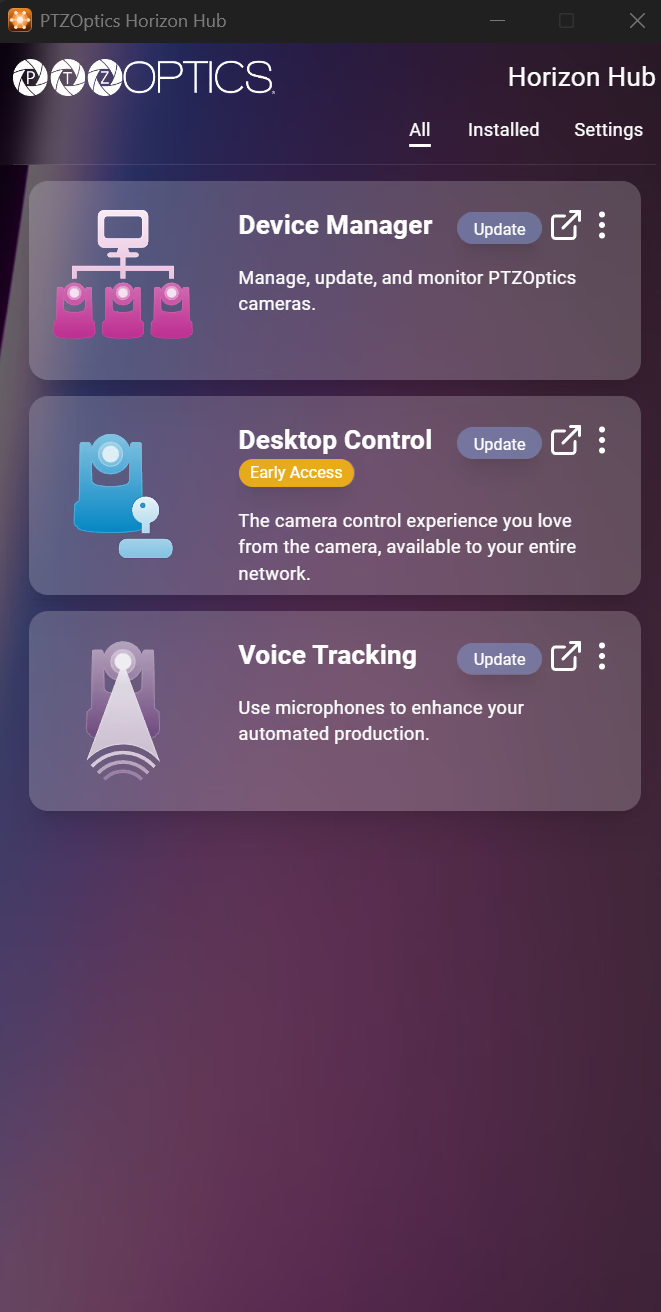
- Open the All menu or the Installed menu.
- Click the app's icon once to launch it.
Manage Installed Apps
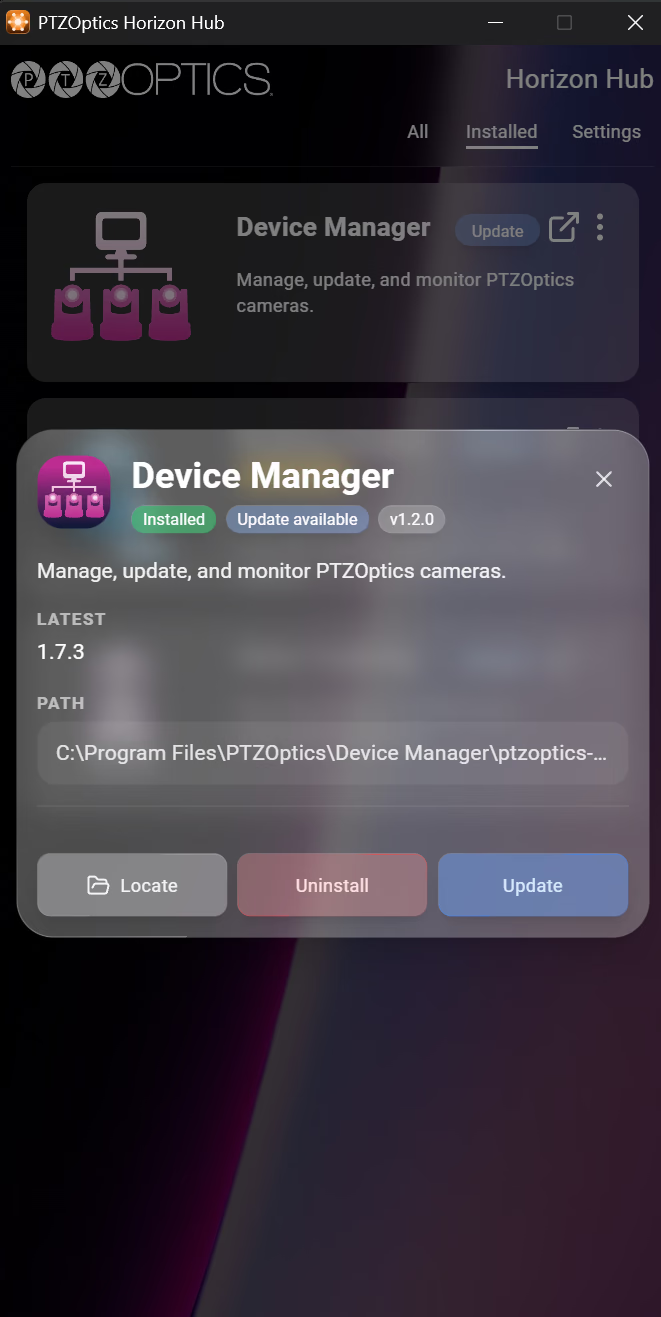
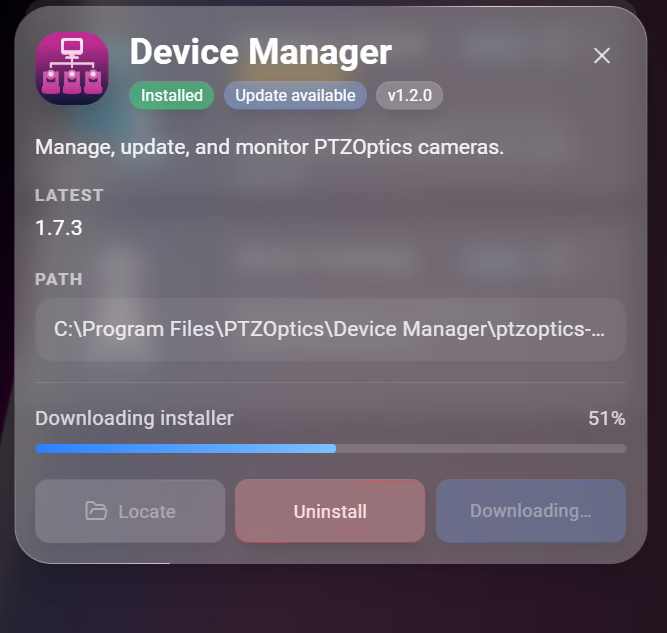
If an app is already installed, the All menu and the Installed menu show a three-dot icon on the right side of the app's card. Click the three-dot icon to open the app's details panel. The panel shows the app's name, its status, the latest version, and its install path, along with these buttons:
| Button | What It Does |
|---|---|
| Locate | Shows the app's install path. |
| Uninstall | Uninstalls the app. |
| Update | Updates the app. This button appears only when an update is available. |
Update an App
An app with an update available shows an Update tag.
- In the All menu or the Installed menu, click the three-dot icon on the right side of the app that shows the Update tag.
- Click Update. A Downloading installer progress bar shows the progress of the update.
- When the progress bar reaches 100% and Horizon Hub notifies you that the update is complete, close the panel. The app is updated.
You may need to restart Horizon Hub, the updated app, or both for the changes to take effect.
Uninstall an App
Uninstalling an app also removes its user data.
- In the All menu or the Installed menu, click the three-dot icon on the right side of the installed app.
- Click Uninstall.
- Follow the on-screen steps.
Horizon Hub Updates
Horizon Hub does not update automatically. When an update is available, an Update button appears in the Settings menu.
- Open the Settings menu.
- Click Update. A progress bar shows the progress of the update.
- When the update is complete, close and restart Horizon Hub.
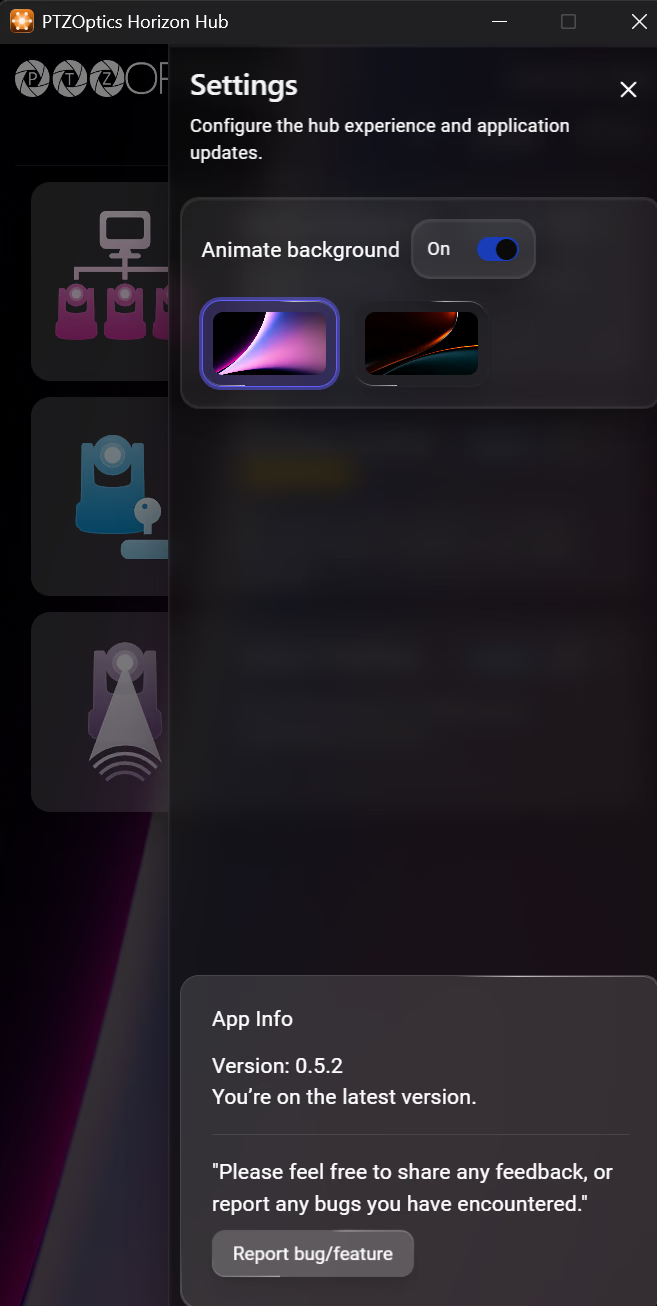
App Info shows the Horizon Hub version number. When Horizon Hub is up to date, it also shows "You're on the latest version."
Configure Horizon Hub Settings
Open the Settings menu to change how Horizon Hub looks, check its version number, or send feedback to PTZOptics.
| Setting | What It Does |
|---|---|
| Animate background | Turns the animated background on or off. |
| Theme options | Choose between a brighter glass theme and a darker glass theme. The theme's animation follows the Animate background toggle. |
| App Info | Shows the Horizon Hub version number. |
| Update | Updates Horizon Hub. This button appears only when an update is available. |
| Report bug/feature | Opens the Bugs/Features Submission form. |
Report a Bug or Request a Feature
Reports go directly to the PTZOptics software development team.
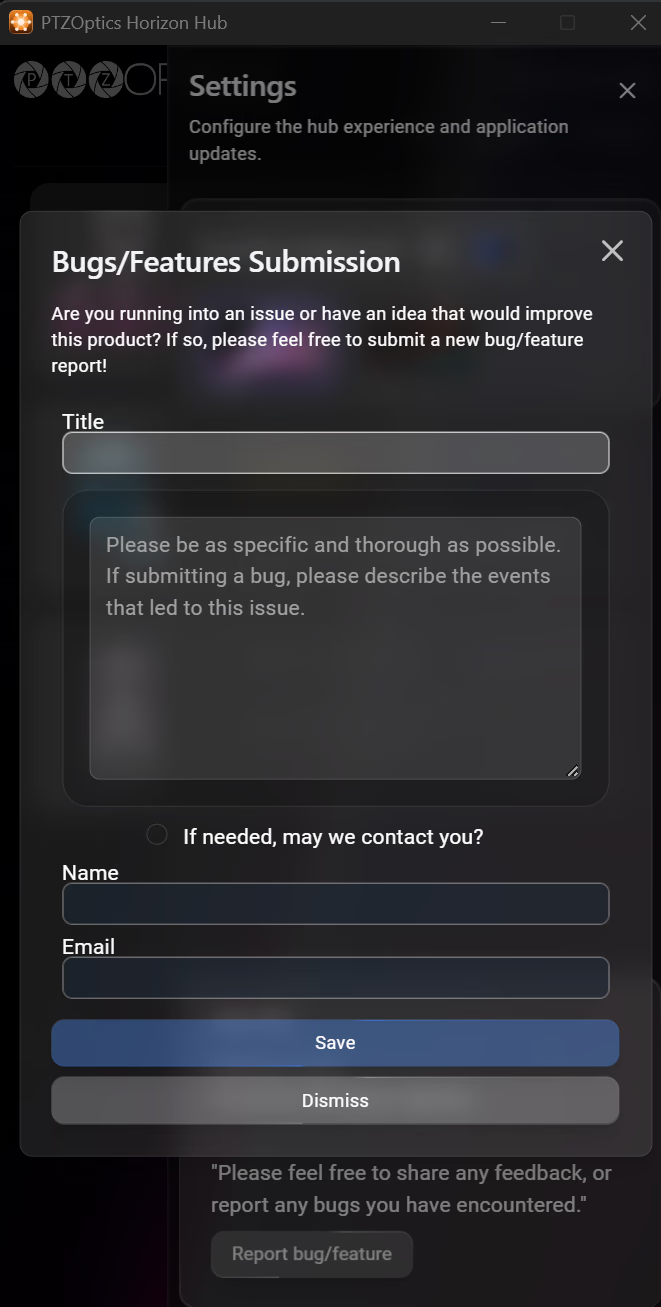
- In the Settings menu, click Report bug/feature under App Info.
- Enter a Title.
- In the text box, describe the bug or the feature as specifically and thoroughly as you can. If you are submitting a bug, describe the events that led to the issue.
- To let PTZOptics contact you if needed, select If needed, may we contact you? and enter your Name and Email.
- Click Save.
After you click Save, PTZOptics works to resolve a reported bug, and the software development team reviews a submitted feature request. If you selected If needed, may we contact you?, the PTZOptics support team may contact you.
Next Steps
Read the documentation for an app you installed from Horizon Hub.